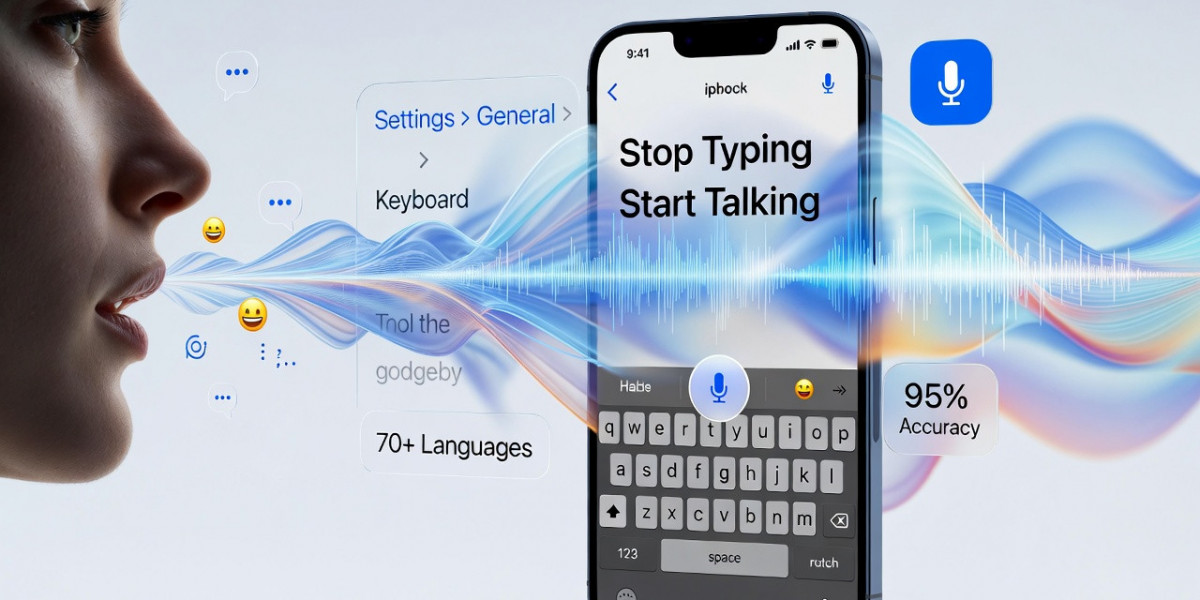

Learning how to use voice to text on iPhone can save hours of typing time every week. This built-in dictation feature has been available since iOS 7 and works seamlessly across all apps, including Messages, Notes, Mail, and social media platforms. Whether you're composing emails during your commute or capturing quick thoughts without breaking your workflow, iPhone's voice dictation delivers hands-free convenience that transforms how you interact with your device.
How to Enable Voice to Text
Activating dictation on your iPhone takes just five simple steps:
- Open the Settings app from your home screen
- Scroll down and tap General
- Select Keyboard from the General menu
- Toggle on Enable Dictation at the top of the screen
- Tap Enable Dictation when the confirmation prompt appears
For multilingual users, tap Dictation Languages to add additional options. iPhone supports over 70 languages, making it accessible for diverse communication needs.
How to Use Voice Dictation
Once enabled, using voice to text on iPhone becomes second nature:
- Open any app with a text field (Messages, Notes, Safari, etc.)
- Tap the microphone icon on the keyboard, located left of the spacebar or near the "123" key
- The icon turns blue or purple with animated sound waves when active
- Begin speaking immediately—transcription appears in real-time
- Tap the keyboard icon or "Done" to finish dictating
Alternatively, activate hands-free dictation by saying "Hey Siri, take a note" or "Hey Siri, send a message." You can seamlessly switch between typing and speaking within the same text field.
Advanced Features & Tips
Maximize your dictation experience with these capabilities:
- Say punctuation marks aloud: "comma," "period," "question mark," "new line."
- iPhone automatically adds punctuation based on natural speech patterns
- Insert emojis by saying "smiley face emoji" or "heart emoji."
- On-device processing ensures privacy and faster response times
- Edit with the keyboard while dictation remains active
- Accuracy reaches 95% with clear speech
- Newer iOS versions work offline without internet connectivity
Master how to use voice to text on iPhone to reclaim valuable time and boost productivity effortlessly.