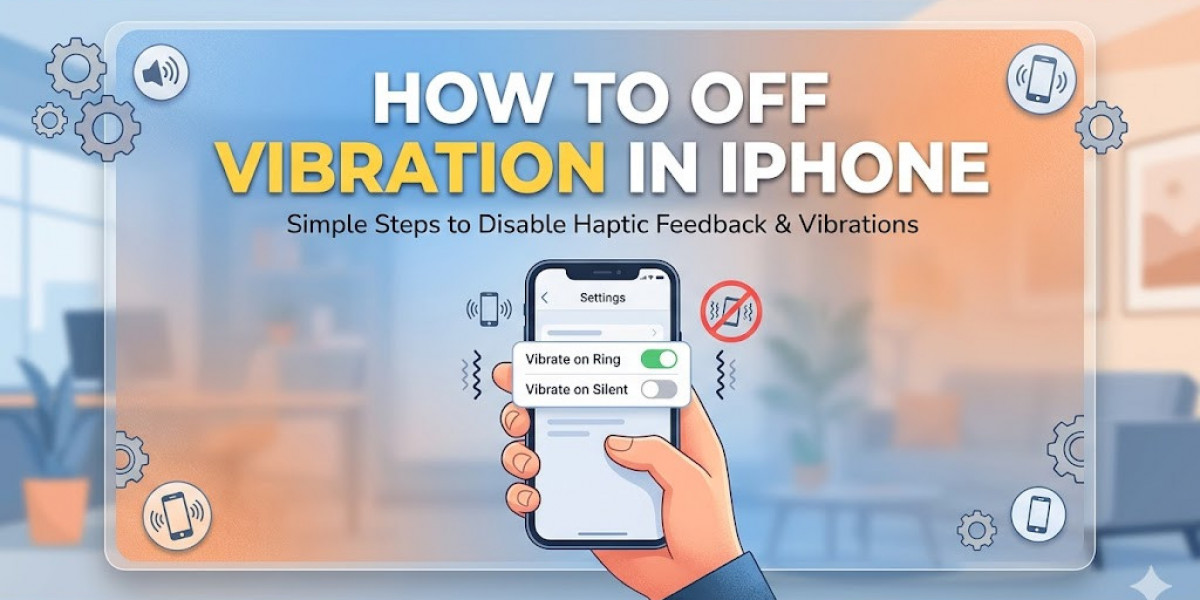

If your iPhone keeps vibrating during calls, notifications, or alerts, you may want to disable the vibration feature for a quieter and distraction-free experience. Many users search for How to Off Vibration in iPhone because vibrations can become annoying during meetings, sleep, study sessions, or office work. Fortunately, Apple provides several easy settings that allow users to turn off vibration completely or customize it according to their preferences.
In this guide, you will learn different ways to manage vibration settings on your iPhone, including calls, notifications, keyboard feedback, emergency alerts, and silent mode vibrations.
Why Users Want to Turn Off Vibration
Vibration alerts are useful in noisy environments, but they are not always necessary. Some users prefer complete silence, while others want to save battery life because constant vibrations can slightly impact performance.
Common Reasons Include:
Avoiding distractions during work or study
Preventing vibrations while sleeping
Reducing battery usage
Maintaining silent meetings or presentations
Stopping unnecessary notification interruptions
Understanding How to Off Vibration in iPhone helps users create a more personalized smartphone experience.
How to Turn Off Vibration for Calls and Notifications
Apple makes it simple to disable vibration through the Settings app.
Steps to Follow:
Open the Settings app on your iPhone.
Tap Sounds & Haptics.
Under the “Haptics” section, turn off:
Play Haptics in Ring Mode
Play Haptics in Silent Mode
Once disabled, your iPhone will stop vibrating during incoming calls and alerts.
Disable Vibration Completely on iPhone
If you want to stop all system vibrations entirely, follow these steps carefully.
Complete Vibration Disable Method
Go to Settings.
Tap Accessibility.
Select Touch.
Scroll down and turn off Vibration.
This setting disables all vibrations on the device, including emergency and system alerts.
Turn Off Keyboard Vibration
Newer iPhones include haptic keyboard feedback that creates small vibrations while typing.
Steps to Disable Keyboard Haptics
Open Settings.
Tap Sounds & Haptics.
Select Keyboard Feedback.
Turn off Haptic.
This helps make typing quieter and less distracting.
How to Off Vibration in iPhone for Specific Apps
Sometimes users only want to disable vibrations for selected apps like WhatsApp, Instagram, or Messages.
Customize App Notifications
Open Settings.
Tap Notifications.
Choose the app you want.
Disable sounds or adjust alert settings.
Some apps also include in-app vibration controls within their own settings menu.
Benefits of Turning Off iPhone Vibrations
Disabling vibrations can improve daily smartphone usage in several ways.
Key Advantages
Creates a quieter phone experience
Reduces unnecessary interruptions
Slightly improves battery efficiency
Helps during professional meetings
Improves focus and concentration
Learning How to Off Vibration in iPhone is especially useful for people who prefer minimal notifications and a peaceful digital environment.
Final Thoughts
Managing vibration settings on an iPhone is quick and easy. Whether you want to disable vibrations completely, stop keyboard haptics, or customize alerts for certain apps, Apple offers flexible controls for every user. By following the steps above, you can create a quieter and more comfortable smartphone experience based on your personal needs.
If you were searching for How to Off Vibration in iPhone, this guide provides all the essential methods to help you control vibration settings efficiently and improve your everyday iPhone usage.